
Access management
Control who can access your MCP server #
You can choose whether your MCP server is public or private:
- Public: anyone with the server URL can access it,
- Private: users must authenticate before gaining access. You choose which authentication method to use.
Server visibility is set during the MCP server creation, and can be changed at any time in your MCP server settings.
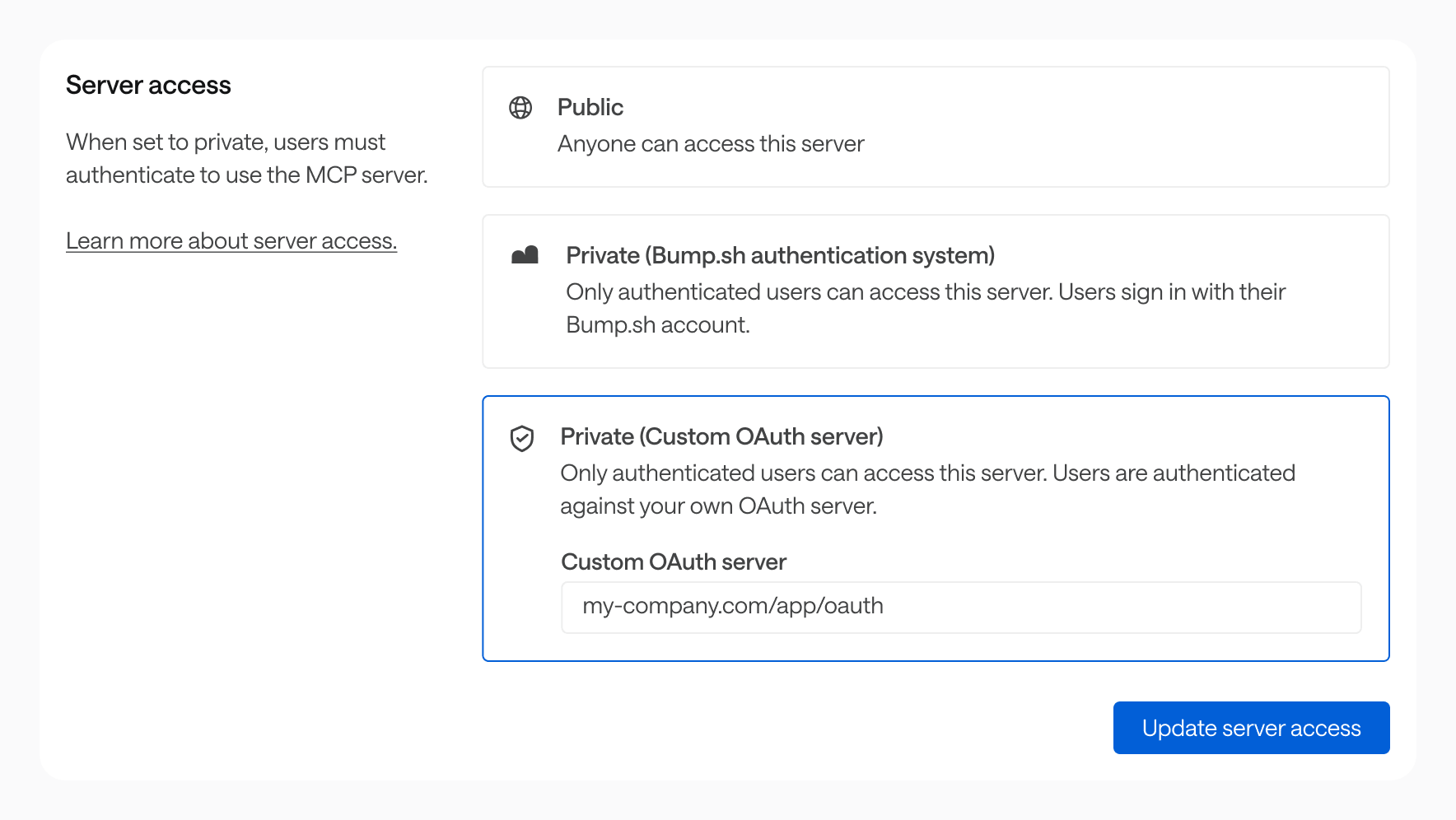
Private MCP servers using a Bump.sh account (default) #
Users sign in with their Bump.sh account. They must be members of your organization on Bump.sh to gain access.
Private MCP servers using your own OAuth server #
If your users already have accounts in your own identity provider (Okta, Auth0, Keycloak, etc.), you can delegate authentication to your own OAuth authorization server: no Bump.sh account required for your users.
On your side: set up an authorization server in your identity provider and configure the appropriate scopes and clients. Refer to your provider’s documentation for this step.
Only OAuth servers are supported for now. For validation purposes, the server needs to be set up using JWT tokens or a UserInfo endpoint.
On Bump.sh side: provide the URL of your OAuth authorization server in your MCP server settings. Bump.sh will redirect users through your authentication flow before granting access.
How users connect #
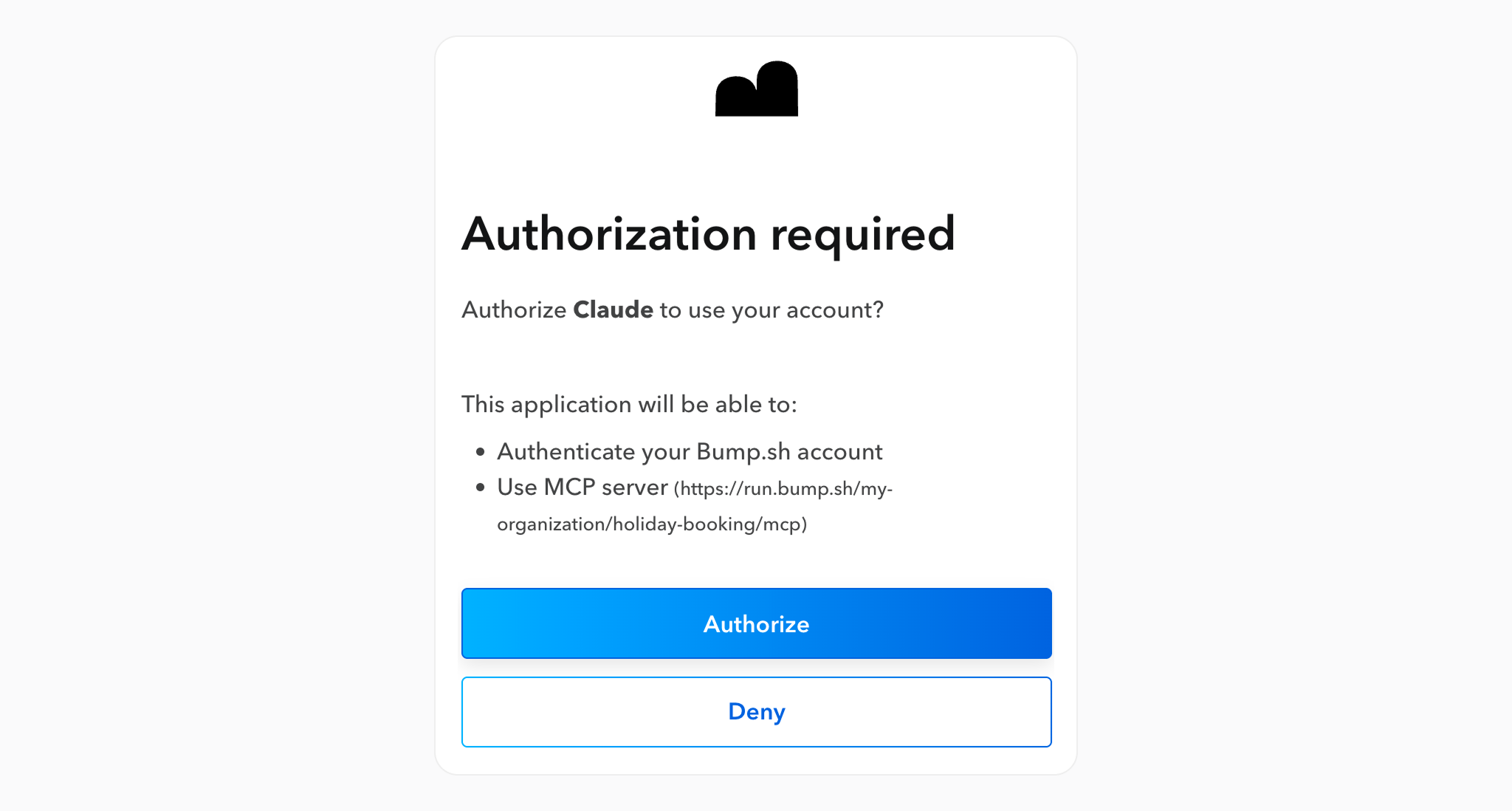
Once your MCP server is set up, here is what your users will experience, regardless of the authentication method:
- The MCP server is added to a tool: Claude, ChatGPT, Cursor, … (see our tutorials),
- The tool reaches the MCP server and gets notified that the server is private,
- A “connect” button appears next to the MCP server entry, or an authorization page automatically opens,
- The user authenticates through the configured identity provider,
- Once authorized, the tool gets access to workflows provided by the MCP server.
Authenticating with APIs #
Controlling access to the MCP server itself is only one layer. The APIs your workflows call may also require authentication, for example, to act on behalf of a specific user or pass credentials at runtime.
Secrets and config covers both server-wide credentials and per-user values forwarded at runtime.